Account Login
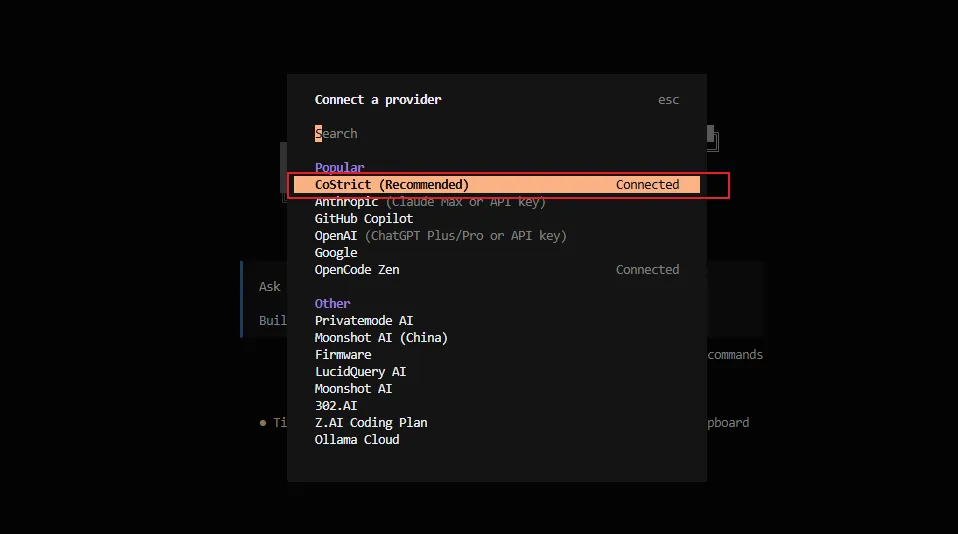
- Select CoStrict Provider
After executing
cs, when the tool starts, a dialog box will appear. Enter/connectand select the CoStrict provider.
Or:
cs auth login
- Log in through the browser. (If the browser does not open automatically, manually copy the URL to the browser to log in)
- Return to the terminal and wait for the login to complete (usually within a few seconds).
Note: If Linux cannot open the browser, there are the following solutions:
-
Open the terminal in VSCode and remotely connect to the server. VSCode can automatically open the browser.
-
Copy the URL from the login window and manually open it in the browser to log in (some terminals, such as Mobaxterm, cannot copy URLs. Please switch to another terminal, such as using the ssh command directly to connect to the server).
-
Log in to CoStrict on Windows first (either CLI or plugin), then copy
%USER_PROFILE%/.costrict/share/auth.jsonto the server at${HOME}/.costrict/share/auth.json, and then use it. If the directory does not exist, please create it manually.
:::tip Private Deployment Configuration For private deployment, the following configuration is required:
- For CLI scenarios, configure the
COSTRICT_BASE_URLenvironment variable before starting - After authentication is completed, the credentials will be stored locally at
~/.costrict/share/auth.json, which will be read first for server configuration :::